


If you're running a Webflow Ecommerce store, you've probably hit this wall already:
Webflow is great for design, but when it comes to fulfillment, it’s limited.
No native logistics. No built-in warehouse integration. No scalable shipping automation.
That’s where Amazon Multi-Channel Fulfillment (MCF) comes in.
This guide walks you through exactly how to connect Webflow to Amazon MCF, how the setup works, and how to avoid the most common mistakes that break fulfillment.
What is Amazon MCF (and Why Webflow Needs It)
Amazon Multi-Channel Fulfillment (MCF) lets you use Amazon’s logistics network to store, pack, and ship orders from any sales channel, including your Webflow store.
That means:
- You don’t need your own warehouse
- You don’t need a 3PL
- Orders can be fulfilled automatically
- You can offer fast, reliable shipping
For Webflow users, this solves the biggest limitation: there’s no native fulfillment system built in.
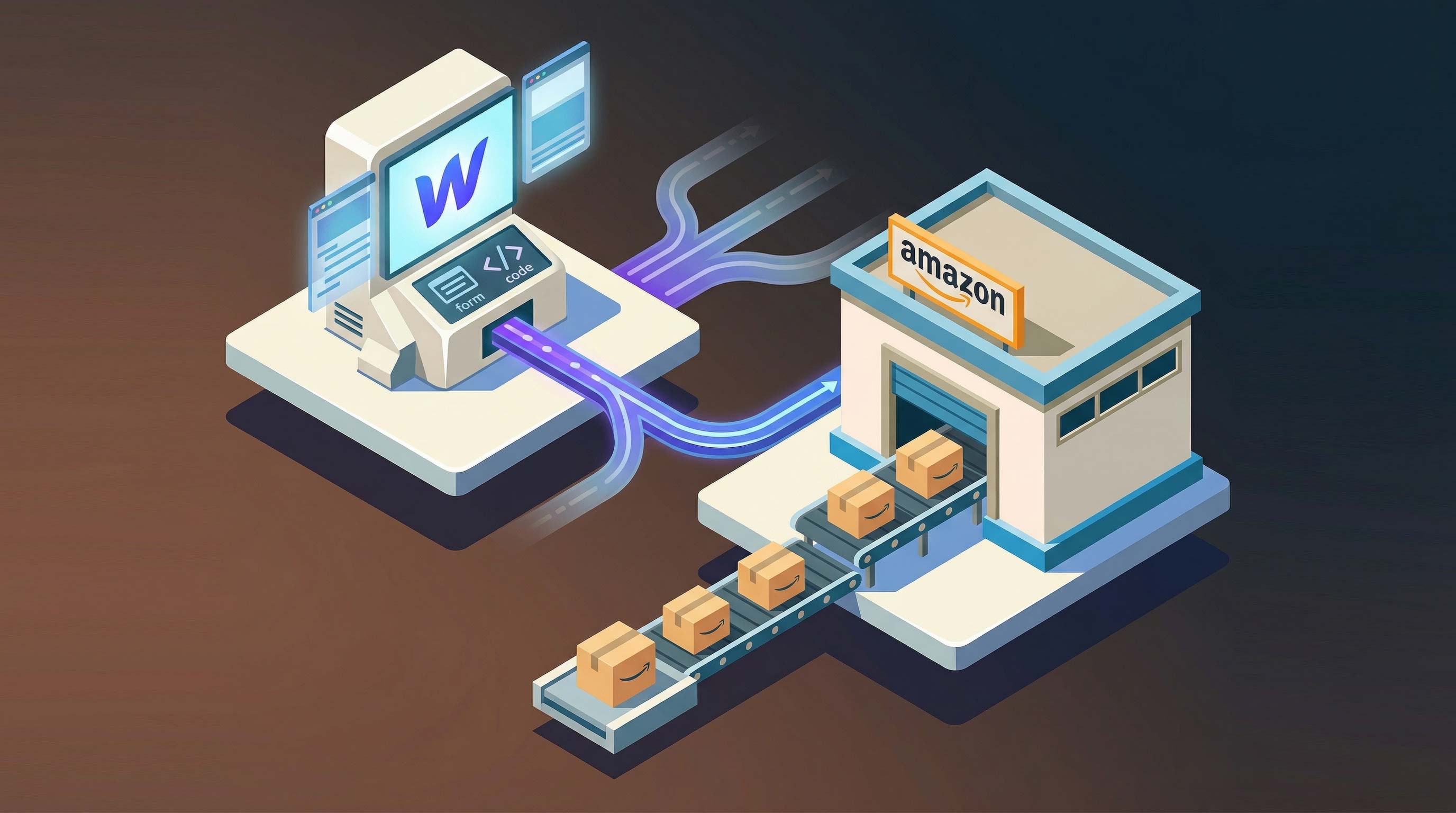
How Webflow + Amazon MCF Works (Simple Breakdown)
Before jumping into setup, it’s important to understand the flow:
- Customer places an order on your Webflow store
- Order data is sent to Amazon MCF
- Amazon picks, packs, and ships the order
- Tracking info is returned to your store
The key piece in the middle is the integration layer, this is what connects Webflow to Amazon.
What You Need Before You Start
Make sure you have:
- A live Webflow Ecommerce store
- Products created in Webflow
- An Amazon Seller Central account
- Inventory stored in Amazon (FBA inventory used for MCF)
- Matching SKUs between Webflow and Amazon
If any of these are missing, the integration will break.
Step 1: Prepare Your Products and SKUs
This is the most important step, and where most setups fail.
Amazon MCF relies entirely on SKU matching.
Your Webflow product SKU must match your Amazon SKU exactly.
Example:
- Webflow SKU:
TSHIRT-BLACK-M - Amazon SKU:
TSHIRT-BLACK-M
If they don’t match:
- Orders won’t send
- Fulfillment will fail
- Inventory won’t sync properly
Tips:
- Keep SKUs simple and consistent
- Avoid spaces or special characters
- Map variants carefully (size, color, etc.)
Step 2: Connect Webflow to Amazon MCF
Webflow does not natively integrate with Amazon MCF.
You need a connector to bridge the two systems.
There are three ways to do this:
Option 1: Use a Native Webflow MCF App (Recommended)
This is the simplest and most reliable option.
Benefits:
- No custom code
- Works with Webflow Ecommerce directly
- Real-time order syncing
- Built-in inventory updates
- Shipping speed control
This is the best option if you want something stable and scalable.
Option 2: Use Middleware (Zapier, Make, etc.)
You can connect Webflow to Amazon using automation tools.
Downsides:
- Fragile setup
- Limited reliability
- Harder to debug
- Slower processing
This works for simple setups, but not at scale.
Option 3: Build a Custom API Integration
This involves:
- Webflow webhooks
- Amazon MCF API
- A backend server
Best for developers, but:
- High maintenance
- More points of failure
- Slower to launch
Step 3: Configure Order Sync
Once connected, you need to define how orders are sent.
Key settings to configure:
Order Trigger
When should orders be sent to Amazon?
- Immediately after payment
- After manual approval
Most stores use automatic sync.
Shipping Speeds
Amazon MCF supports:
- Standard
- Expedited
- Priority
You can map these to your Webflow shipping options.
Address Validation
Make sure:
- Customer addresses are passed correctly
- International orders are supported (if needed)
Bad address data = failed fulfillment.
Step 4: Enable Inventory Sync
Inventory syncing keeps your Webflow store aligned with Amazon stock levels.
Without this:
- You risk overselling
- Customers order out-of-stock products
A good setup will:
- Pull inventory from Amazon
- Update Webflow automatically
- Prevent unavailable products from being sold
Step 5: Set Up Order Tracking
Once Amazon ships an order:
- Tracking info is generated
- It should sync back to Webflow
This allows you to:
- Notify customers
- Update order status
- Reduce support requests
If this step is missing, your customer experience breaks.
Step 6: Test Everything Before Going Live
Never skip testing.
Run at least 2–3 test orders:
- Different products
- Different shipping speeds
- Different addresses
Check:
- Did the order reach Amazon?
- Was it fulfilled correctly?
- Did tracking return to Webflow?
If anything fails, fix it before real customers are involved.
Common Problems (and How to Fix Them)
Orders Not Sending to Amazon
Usually caused by:
- SKU mismatch
- Integration misconfiguration
- Missing required fields
Fix:
- Double-check SKUs
- Review connection logs
- Validate order data
Orders Stuck in Pending
Causes:
- Payment not confirmed
- Sync delay
- API error
Fix:
- Ensure orders are marked as paid
- Check integration status
Inventory Not Updating
Causes:
- Sync disabled
- SKU mismatch
- API limits
Fix:
- Enable inventory sync
- Verify SKU mapping
Shipping Issues
Causes:
- Incorrect shipping mapping
- Unsupported regions
Fix:
- Align shipping methods
- Check Amazon coverage
Best Practices for Scaling Webflow + Amazon MCF
Once everything is working, focus on optimization.
1. Keep SKU Structure Clean
Your entire system depends on this.
2. Use Real-Time Sync Where Possible
Delays = bad customer experience.
3. Monitor Failed Orders
Set alerts if possible.
4. Choose the Right Shipping Speeds
Balance cost vs delivery expectations.
5. Plan for Returns
Amazon MCF supports returns, but your workflow needs to handle them.
Is Webflow + Amazon MCF Worth It?
For most Webflow stores, yes.
You get:
- Amazon-level logistics
- Fast delivery
- Scalable fulfillment
- No warehouse management
Without:
- Moving to Shopify
- Building custom infrastructure
The key is having the right integration setup.
Final Thoughts
Connecting Webflow to Amazon MCF isn’t complicated, but it is precise.
If your:
- SKUs are correct
- Integration is stable
- Sync is configured properly
Then your store can run a fully automated fulfillment system using Amazon’s network.
If not, things break quickly.
So take the time to set it up properly, test thoroughly, and build on a reliable foundation.